Understanding the Gateway: Dashboard Access & Token Setup
Getting a 'gateway token missing' or 'unauthorized' error in OpenClaw? This chapter covers how to access your Gateway Dashboard, find your token in openclaw.json, and paste it in the Control UI settings to fix the connection.
Your agent is running. Before we connect it to WordPress, let's understand how the gateway works. This knowledge will help you build better workflows, debug issues faster, and unlock advanced features.
Accessing the Gateway Dashboard
Open your browser and go to:
http://127.0.0.1:18789/chat?session=agent%3Amain%3Amain
This is your local Gateway Dashboard — the control center for your OpenClaw agent.
Gateway Token Required
If you see an error like:
disconnected (1008): unauthorized: gateway token missing
You need to include your gateway token in the URL. Find your token in ~/.openclaw/openclaw.json under the gateway.token field, then access the dashboard with:
http://127.0.0.1:18789/chat?session=agent%3Amain%3Amain&token=YOUR_TOKEN_HERE
Alternatively, open the dashboard URL first, then paste the token in Control UI settings when prompted.
Troubleshooting Common Errors
Running into connection issues? Here are the most common problems and how to fix them:
What does 'gateway token missing' mean?
This error means OpenClaw's Gateway Dashboard can't verify your identity. The gateway requires authentication to prevent unauthorized access. When you see "unauthorized: gateway token missing," it's simply asking you to prove you're the owner of this OpenClaw instance by providing your unique gateway token.
Where do I find my gateway token?
Your gateway token is stored in the main OpenClaw configuration file:
- Open
~/.openclaw/openclaw.jsonin any text editor - Look for the
gatewaysection - Copy the value of the
tokenfield
The token is a long random string generated during installation. It's unique to your OpenClaw instance and should be kept private.
What is the Control UI settings page?
The Control UI settings is a configuration panel that appears when you first access the Gateway Dashboard without a token in the URL. It's a popup or overlay where you can paste your gateway token to authenticate your session. Once you paste the token and save, the dashboard will remember it for future visits on that browser.
Why am I getting 'unauthorized: gateway token missing'?
This happens when:
- You're accessing the dashboard for the first time without the token parameter in the URL
- Your browser cleared the saved token from local storage
- You're using a different browser or incognito mode
- The token in the URL is incorrect or corrupted
Quick fix: Add &token=YOUR_TOKEN_HERE to the dashboard URL, or open the Control UI settings panel and paste your token from ~/.openclaw/openclaw.json.
The dashboard won't load — what do I check first?
If the dashboard page won't load at all:
- Check if OpenClaw is running: Open a terminal and run
ps aux | grep openclaw. You should see an OpenClaw process running. - Verify the port: The default dashboard URL is
http://127.0.0.1:18789. Make sure nothing else is using port 18789. - Check the logs: Run
tail -f ~/.openclaw/logs/gateway.logto see recent gateway activity and any error messages. - Restart OpenClaw: Sometimes a simple restart fixes connection issues. Stop and start the OpenClaw service.
If the dashboard loads but shows "disconnected," that's the token authentication issue covered above—not a loading problem.
What You'll See
The dashboard shows:
- Chat panel — Talk directly with your agent
- Health status — Green "OK" means everything's connected
- Session info — Which conversation you're in
- Navigation — Access settings, logs, and more
The Gateway Architecture
OpenClaw's gateway is the central hub that routes messages between different systems—your WordPress site, chat platforms, APIs, and the AI model. Think of it as a smart switchboard operator.
The gateway has three core responsibilities:
- Message Router — Decides where messages go and how to handle them
- Session Manager — Tracks conversations and context across channels
- Plugin System — Extensible framework for custom integrations
When a webhook hits your OpenClaw instance, the gateway:
- Receives the request — Validates the incoming webhook payload
- Identifies the source — WordPress form, Slack message, email, etc.
- Routes to appropriate handler — Based on your workflow configuration
- Maintains session context — Remembers previous interactions with this contact
- Invokes the AI model — With relevant context and instructions
- Executes the response — Send email, update CRM, create tasks, etc.
The OpenClaw Directory
After installation, OpenClaw creates a .openclaw directory in your home folder:
~/.openclaw/
├── agents/            # Multi-agent configurations
├── canvas/            # Canvas UI assets
├── completions/       # Cached completions
├── credentials/       # API keys and tokens
├── cron/              # Scheduled job definitions
├── devices/           # Paired device data
├── identity/          # Agent identity files
├── logs/              # Activity logs
├── openclaw.json      # Main configuration file
├── openclaw.json.bak  # Config backup
├── update-check.json  # Version check data
└── workspace/         # Your agent's workspace
The key file is openclaw.json — this is your main configuration. You can edit it directly or use the dashboard UI.
The Workspace
The workspace/ folder is where your agent lives and thinks. This is where you customize its personality, give it context about you, and where it stores its memories:
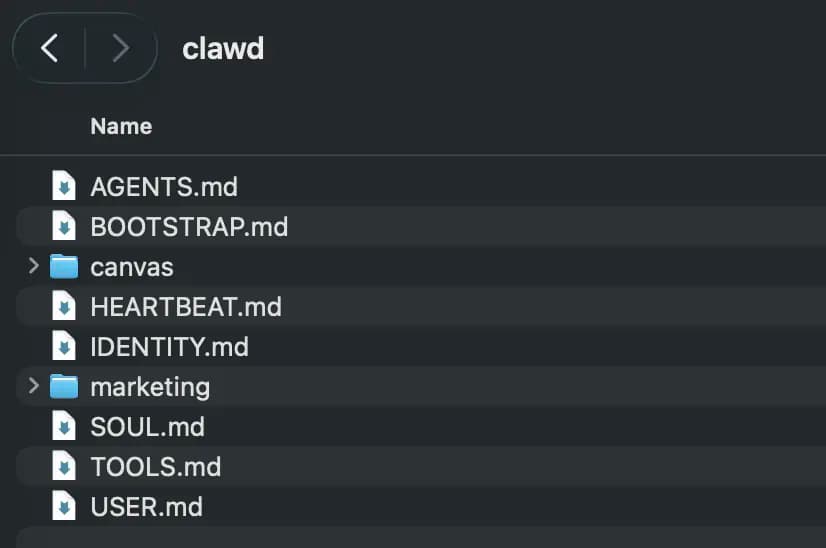
~/.openclaw/workspace/
├── AGENTS.md          # Operating instructions
├── IDENTITY.md        # Who your agent is
├── MEMORY.md          # Long-term curated memory
├── SOUL.md            # Personality and behavior
├── TOOLS.md           # Local setup notes
├── USER.md            # Info about you
└── memory/            # Daily logs
    ├── 2026-02-11.md  # Today's notes
    └── YYYY-MM-DD.md  # Daily pattern
Key Workspace Files
SOUL.md — Your agent's personality. Is it formal or casual? Proactive or reactive? Technical or friendly? Define its tone and behavior here.
IDENTITY.md — Who your agent is. Give it a name, a role, maybe even an emoji. This shapes how it introduces itself.
USER.md — Information about you. Your timezone, preferences, business context. The more your agent knows about you, the better it can help.
AGENTS.md — Operating instructions. Rules for how your agent should work, what it should do on startup, safety guidelines.
TOOLS.md — Local setup notes. Camera names, SSH hosts, API endpoints, voice preferences. Environment-specific details your agent needs.
Memory System
Your agent wakes up fresh each session. Memory files are how it maintains continuity:
MEMORY.md — Long-term curated memory. The distilled essence of important decisions, preferences, and learnings. Think of it as your agent's wisdom.
memory/YYYY-MM-DD.md — Daily logs. Raw notes of what happened each day. Your agent writes here during sessions, then periodically reviews and promotes important bits to MEMORY.md.
This pattern means your agent remembers what matters without drowning in noise.
Exploring the Sidebar
The sidebar gives you access to:
Control
- Overview — System status at a glance
- Channels — Connected messaging platforms
- Instances — Running agent instances
- Sessions — Active conversations
- Cron Jobs — Scheduled tasks
Agent
- Skills — What your agent can do
- Nodes — Connected devices and services
Settings
- Config — Core configuration (via the dashboard UI)
- Debug — Troubleshooting tools
- Logs — Activity history
Your First Conversation
Type a message to your agent. Try something simple:
"Hello! What can you help me with?"
Your agent will respond based on its configuration. Out of the box, it can:
- Answer questions
- Help with tasks
- Remember context from your conversation
Understanding Sessions
Each conversation is a session. Sessions keep context — your agent remembers what you discussed.
You can:
- Start new sessions for fresh conversations
- Switch between sessions
- Review past sessions in the logs
Channel Management
OpenClaw can connect to multiple communication platforms simultaneously. Each channel appears in the sidebar under Channels.
Supported Platforms:
- Slack — Real-time messaging, commands, and interactive elements
- Discord — Guild and DM messaging with role support
- Telegram — Bot commands and group chat
- WhatsApp — Personal and business messaging
- Email — SMTP/IMAP integration
Start with one channel. Get comfortable with your primary platform first, then expand. Each channel adds complexity to your workflows.
Skills and Capabilities
Skills are modular capabilities that define what your agent can do beyond basic conversation.
Built-in Skills
OpenClaw includes several ready-to-use skills:
- Web Search — Search the web and summarize results
- File Operations — Read, write, and manipulate files
- Shell Commands — Execute terminal commands safely
- HTTP Requests — Call external APIs
View available skills in the sidebar under Agent → Skills.
The Request Lifecycle
Understanding how requests flow through the gateway helps with debugging:
- Inbound — Request arrives (webhook, message, scheduled task)
- Authentication — Signature/token validation
- Parsing — Extract structured data from the payload
- Context Loading — Fetch relevant session history and user data
- Model Invocation — Send to Claude with context and tools
- Tool Execution — Run any tools the model requests
- Response Generation — Format the final response
- Outbound — Send response back to the originating channel
Check the Logs section in the sidebar for detailed request traces.
Next Steps
Now that you understand how the gateway works, you're ready to set up your WordPress environment. In the next chapter, we'll use WordPress Studio to create a local development site — perfect for testing your OpenClaw integration before going live.
Quick Reference:
| URL | What it opens |
|---|---|
http://127.0.0.1:18789/chat | Gateway Dashboard (main chat) |
http://127.0.0.1:18789/ | Gateway root (redirects to chat) |