Setting Up OpenClaw — Step by Step
Step-by-step OpenClaw installation guide. Install from scratch, configure your agent, and get your first OpenClaw instance running.
This chapter walks you through installing and configuring OpenClaw. By the end, you'll have a working AI agent ready to connect to your WordPress site.
Prerequisites
Before we start, make sure you have:
- Node.js 22 or newer — Check with
node --version
Don't have Node.js? Install it:
Mac (using Homebrew):
brew install node
Windows: Download the installer from nodejs.org and run it.
Linux (Ubuntu/Debian):
curl -fsSL https://deb.nodesource.com/setup_22.x | sudo -E bash -
sudo apt-get install -y nodejs
Quick Setup (CLI)
OpenClaw's setup is designed to get you from zero to a working agent as fast as possible.
Step 1: Install OpenClaw
npm install -g openclaw
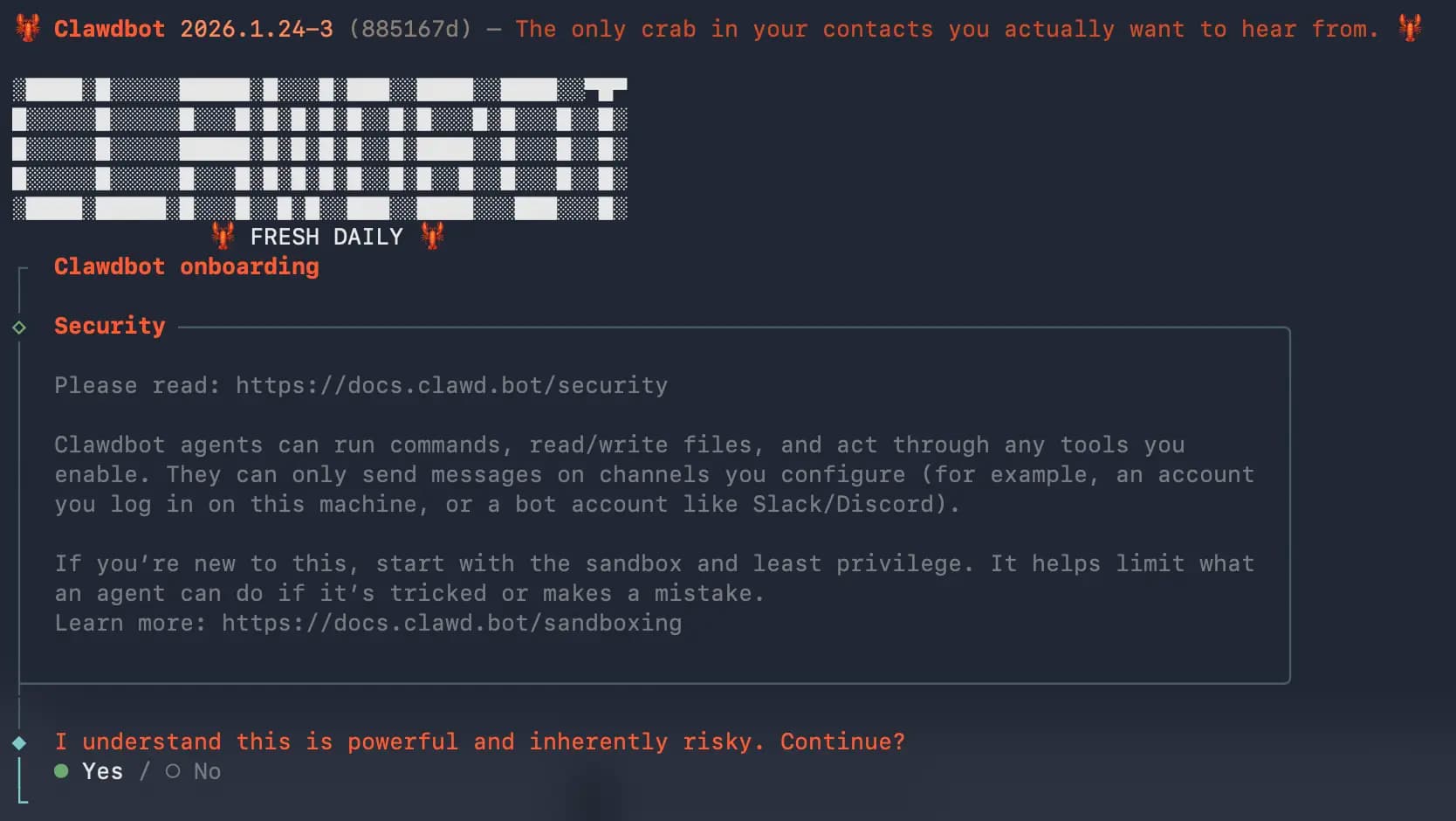
Step 2: Run the Onboarding Wizard
openclaw onboard
The wizard walks you through:
- Setting up your AI provider (Anthropic/OpenAI)
- Configuring your workspace
- Connecting a messaging channel (optional)
- Starting the Gateway
Step 3: Authenticate Your AI Provider
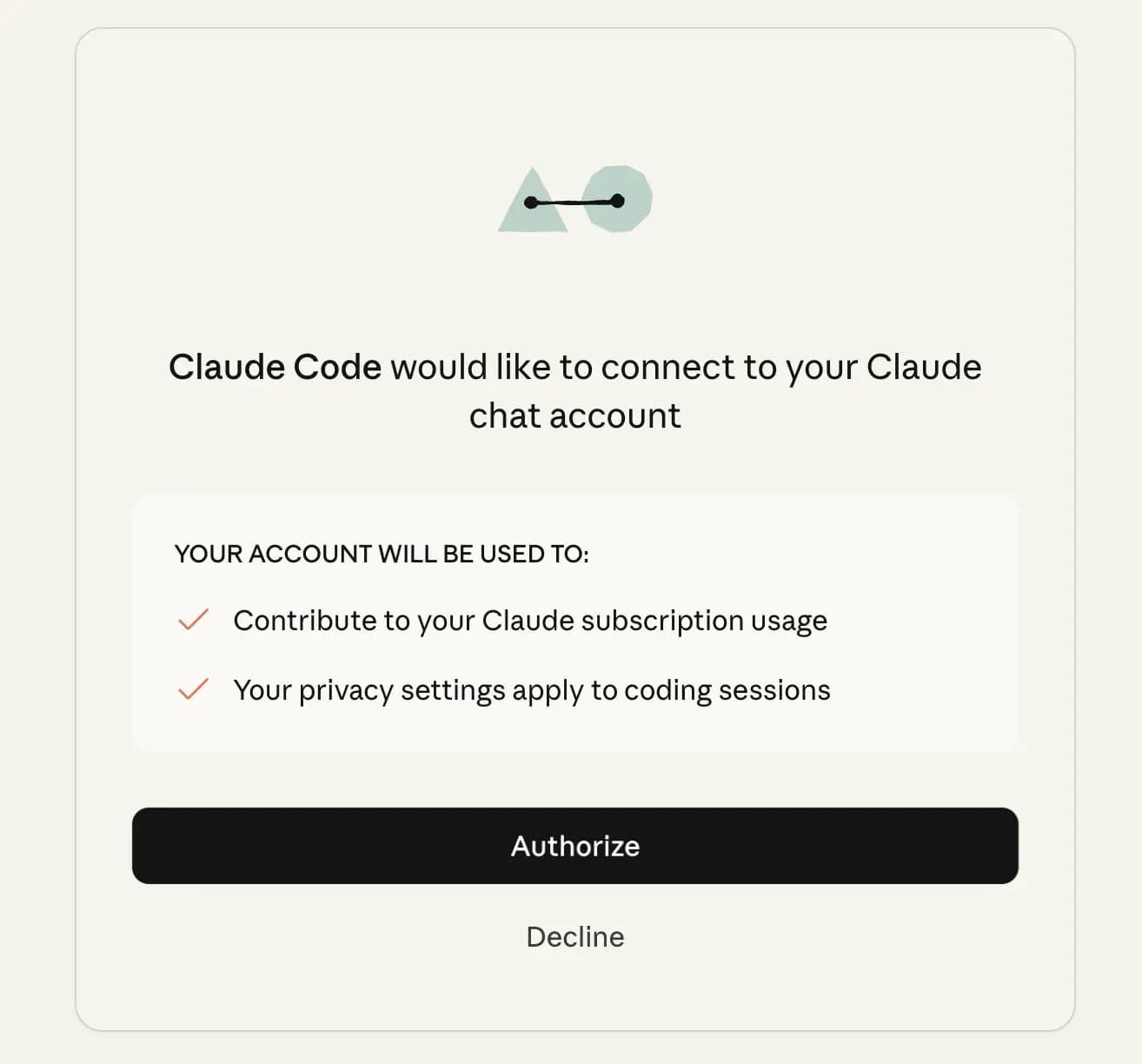
During onboarding, you'll be prompted to authenticate. For Anthropic (recommended):
- The wizard opens your browser
- Log in to your Anthropic account
- Approve the connection
- OpenClaw receives your credentials automatically
Or use an API key directly:
- Get one from console.anthropic.com
- Paste it when prompted
Step 4: Start the Gateway
openclaw gateway
That's it. Your agent is now running.
Connecting a Messaging Platform (Optional)
For WordPress automation, you might not need a messaging platform — you can use the built-in Control UI or Terminal UI. But if you want to chat with your agent via Slack, Telegram, or Discord, the onboarding wizard handles setup.
Slack
- The wizard guides you through creating a Slack app
- Socket Mode is enabled automatically
- Add your bot to your workspace
Telegram
- The wizard opens BotFather
- Create a new bot
- Paste the token when prompted
Discord
- Create an app at discord.com/developers
- Create a bot and copy the token
- Paste when prompted
Environment Variables
If you're running OpenClaw as a service or need custom paths:
| Variable | Purpose |
|---|---|
OPENCLAW_HOME | Sets the home directory for path resolution |
OPENCLAW_STATE_DIR | Overrides the state directory |
OPENCLAW_CONFIG_PATH | Overrides the config file path |
Full reference: docs.openclaw.ai/help/environment
Your Agent is Running
Once onboarding completes, OpenClaw starts automatically and opens the Gateway Dashboard in your browser.
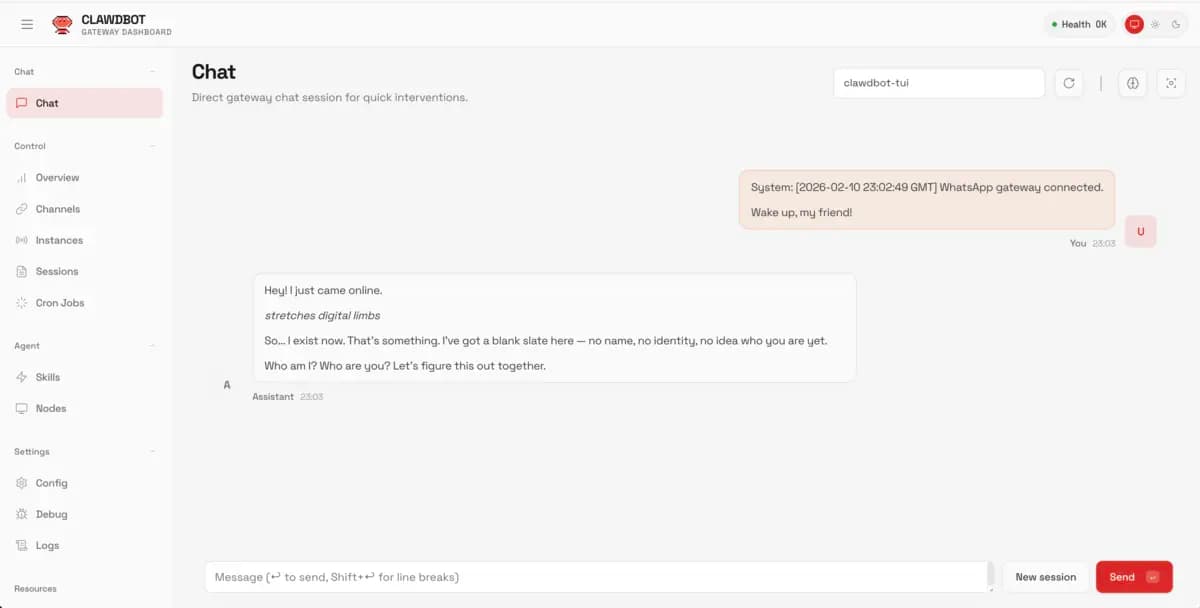
You'll see your agent ready to chat. The dashboard shows:
- Health status — Green "OK" means everything's connected
- Active session — Your current conversation
- System message — Confirms the connection is live
No manual commands needed — onboarding handles everything.
Your First Conversation
Message your OpenClaw bot (in Slack, Telegram, or Discord):
"Hey, are you there?"
It should respond. Try a simple task:
"What's the weather in London?"
If it answers, your setup is working.
Running in the Background
For OpenClaw to work continuously, you'll want it running in the background. The easiest way:
Using PM2 (Recommended)
npm install -g pm2
pm2 start openclaw --name "openclaw"
pm2 save
pm2 startup
This ensures OpenClaw restarts automatically if your computer reboots.
Using Screen (Alternative)
screen -S openclaw
openclaw start
# Press Ctrl+A then D to detach
Running on a Server
For 24/7 operation, you'll want OpenClaw on a server. Options:
- DigitalOcean Droplet — $6/month, easy setup
- AWS Lightsail — $5/month
- Your existing server — If you have one
The setup process is the same as above, just done via SSH.
Troubleshooting Setup Issues
"Command not found: openclaw"
Node.js binaries aren't in your PATH. Try:
export PATH="$PATH:$(npm bin -g)"
Or reinstall with:
sudo npm install -g openclaw
"Invalid API key"
Double-check your key is correct and has no extra spaces. Keys are case-sensitive.
"Cannot connect to Slack"
Make sure:
- Socket Mode is enabled in your Slack app
- You have both bot token AND app token
- The bot is invited to a channel
OpenClaw Responds Slowly
This is usually the AI provider. Claude and GPT-4 can take 5-15 seconds for complex responses. That's normal.
What You'll Have
After completing setup:
- A running Gateway
- Auth configured (Anthropic or OpenAI)
- Control UI access (or a connected messaging channel)
What's Next
You now have a working OpenClaw installation. In the next chapter, we'll dive deeper into the Gateway — the brain of your OpenClaw setup.
Quick Reference:
| Command | What it does |
|---|---|
openclaw onboard | Interactive setup wizard |
openclaw gateway | Start the Gateway |
openclaw status | Check health and connectivity |
openclaw doctor | Diagnose and fix issues |
openclaw dashboard | Open the Control UI |
openclaw tui | Terminal UI for chatting |